More clarity, more control – Custom Markets are now fully editable
22.07.2025
When we introduced Custom Market Management in April 2025 (see Changelog from 28.04.2025), one thing was clear from the start: this new section was meant to be more than just an overview. In our initial announcement, we already communicated that key features would be delivered step by step – including Share, Delete & Detach, and Edit.
In June, the Share function (see Changelog from 05.06.2025) made cross-team collaboration easier. This was followed in July by the Delete & Detach feature (see Changelog from 24.06.2025), which allowed users to clean up their Custom Markets more precisely.
With this latest iteration, we’re rounding off the core functionality of Custom Market Management – for now. Custom Markets can now be edited directly, without the need to create a new one from scratch. All changes are immediately visible to everyone with access.
But this is far from the end: we’re already working on further improvements like a preview mode for Custom Markets, so stay tuned.
Edit Custom Markets the way you need and always in sync for everyone
Over time, markets evolve and therefore also the requirements for existing market definitions. To help you respond flexibly, a new editing feature is now available in the Custom Market Management area. Both owners and recipients can adjust an existing market directly, without having to create a new one. All changes are automatically applied to everyone who has access to the respective Custom Market.
What’s possible?
Editing your Custom Market is structured into two tables:
- On the left side, you can search for companies, brands, product groups, or individual products. Your selection is automatically resolved down to PZN level and displayed in the table below. From there, you can select individual or multiple PZNs and either add them to or remove them from the market.
- On the right side, you see the current state of your Custom Market. At the top, you can edit the market name, and below that, the full list of currently included PZNs is displayed.
An integrated change summary keeps track of all adjustments, showing which PZNs have been added or deleted. Only when you click “Save & Close” are your changes saved and automatically applied to all users with whom the market has been shared.
Back in the overview, a new column “Last modified by” shows who last edited the market – ensuring full transparency for your team.
Example 1: How to expand a Custom Market
If you want to add new products to your market, simply use the left-hand table to search for a brand like “Nasic”. All associated PZNs will be displayed automatically.
Select the desired PZNs or click “All selected”, then hit “Add to market”. The newly added PZNs won’t appear in the right-hand table immediately – instead, they will be listed separately under “Added”.
Click “Save & Close” to save your changes and update your Custom Market accordingly (see GIF 1).
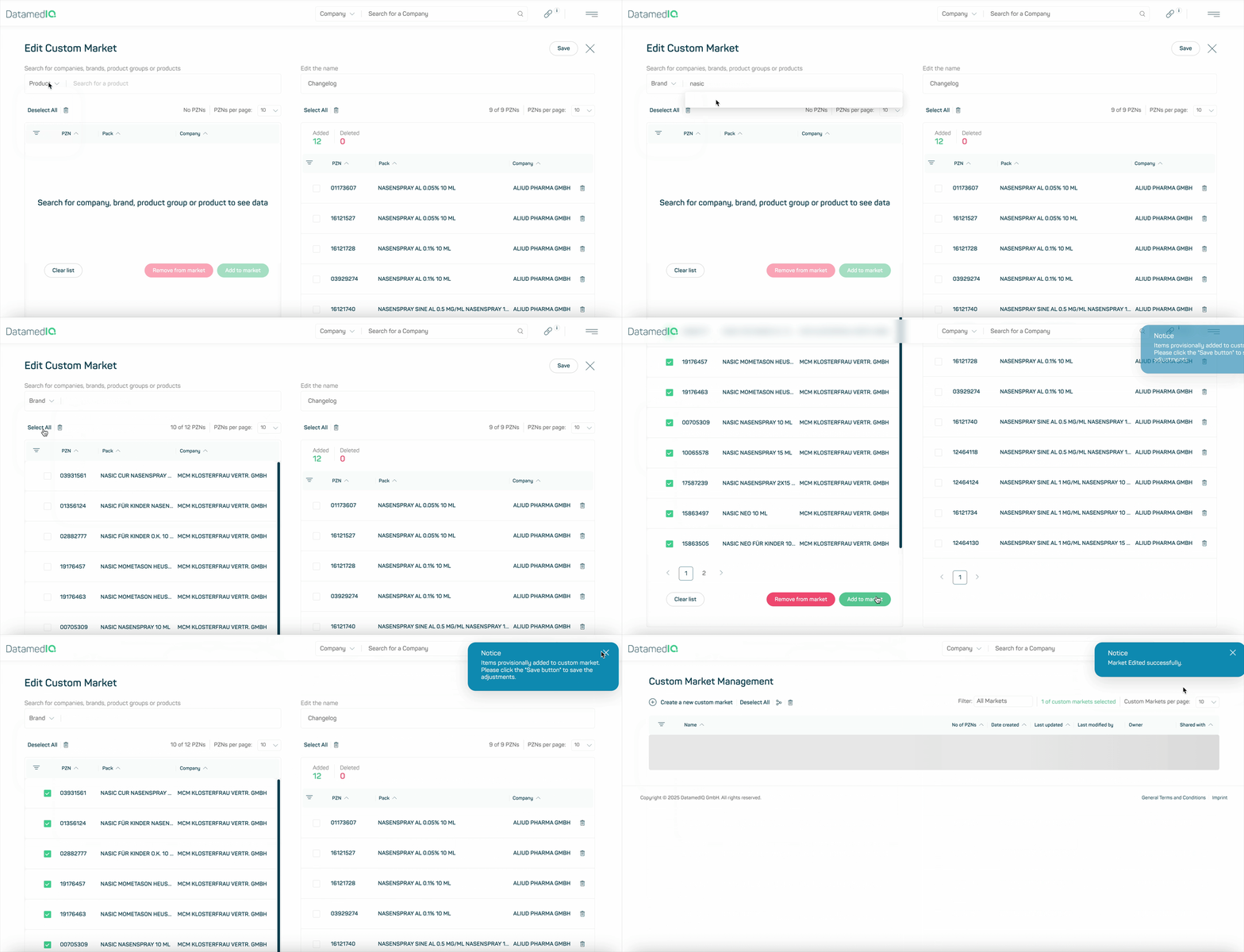
GIF 1
Example 2: How to remove PZNs from your Custom Market
Removing products is just as intuitive:
Use the left-hand table to search for a company, brand, or product group. Select the relevant PZNs and click “Remove from market”.
The right-hand table will remain unchanged for now, but the removed PZNs will be listed under “Deleted” so you can track what’s been taken out. As before, one click on “Save & Close” is enough to apply the changes (see GIF 2).
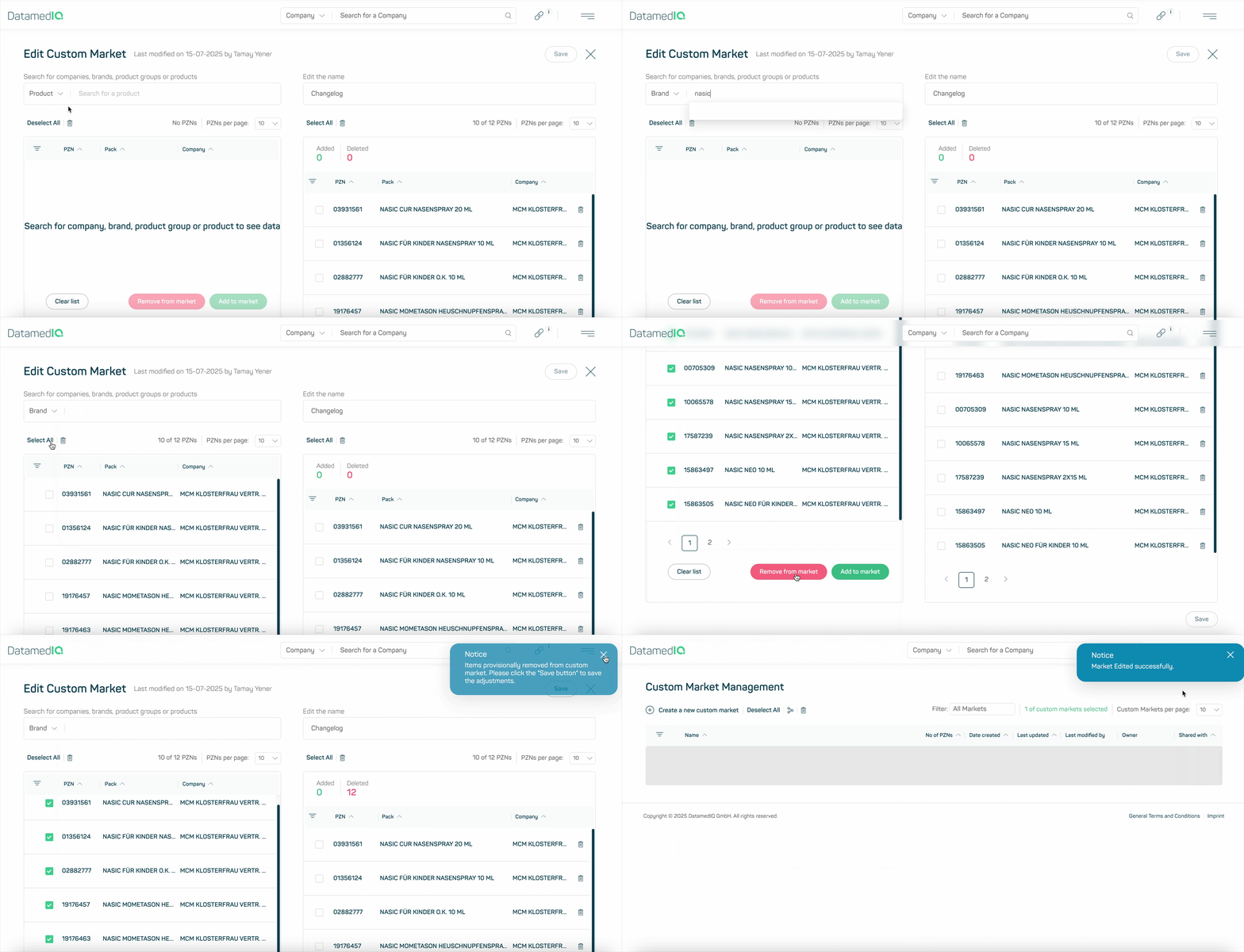
GIF 2
Further Information
With the new editing feature, you always retain full control over your Custom Markets, including every single change. All updates are automatically applied for everyone with access to the respective market. This ensures your entire team stays up to date at all times.
And that’s not all. In the future, we plan to further expand how Custom Markets can be defined. You’ll soon be able to create markets based on ATC classes, active ingredients, or even pack sizes. Stay tuned!
Understand what you select – new descriptions in the “Dimensions” step
In the “Dimensions” step of the Custom Download, you’ll now find helpful context for each selection: For the datasets OTC Insights, POS Insights Weekly Summary, OTC Maps, and OTC Insights Weekly, each available dimension is now accompanied by a short description, the corresponding field name, and a concrete example. This makes it easy to identify which dimensions are relevant for your analysis, helping you configure your dataset even more precisely.