Preselection of time ranges now available in Custom Download
23.09.2024
In the Custom Download section, you can now select relative time ranges for datasets. This allows a faster and more convenient selection. In addition, the relative time range is preserved as a predefined setting when you save it in the configuration.
What is new and how does it work?
In the Custom Download section, you can now choose from the following preselection options in the drop-down menu next to the time range tables when selecting the time range (see image 1):
- No option: No time range selected
- L1M: Last month
- L3M: Last 3 months
- L6M: Last 6 months
- L12M: Last 12 months
These predefined time ranges are relative time ranges, which means that they are automatically adjusted when you load a saved configuration. This saves time and makes repeated downloads more efficient. If you select “No option”, you have to choose a date range from the date picker.
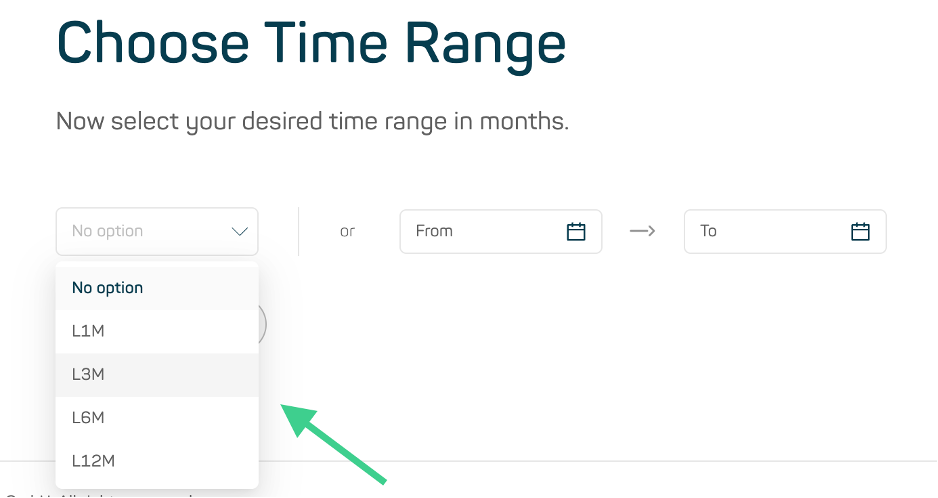
Image 1
One Example:
In September, you decide to create a Custom Download. First, you select the dataset (e.g. OTC Insights) and in the next step, you choose a predefined relative time range (e.g. L1M, the last production month, August). You then filter the dataset based on your desired products and select the dimensions you want. In the final step, you export the dataset and check the box to save the configuration, allowing you to easily download the previous month again with the same settings.
One month later, in October, you want to download the same dataset with the same products and dimensions for the previous month, September. You can simply load your persisted configuration from the “My Downloads” section. Then you are taken directly to the export step, where the last month (L1M, i.e. in that example, September) is automatically selected.
What is the difference between an absolute and a relative time range?
Absolute time range:
After manually selecting the time range, you can proceed with the remaining steps in the Custom Download section as usual. When you reach the export step, you can save the file as a configuration and refer to it later. However, when you load the saved configuration, you will be directed back to the step where you need to manually select the time range again. All other settings can be skipped.
Relative Time Range:
By selecting a relative time range, now available as a preselection in the dropdown menu, you can continue through the process as usual. However, if you save this configuration and load it later, you will be taken directly to the export step. The previously selected relative time range (e.g., L1M for the last month) will be automatically selected.