New function: Export PZN lists to Custom Markets by copy and paste
05.09.2024
Creating Custom Markets in the Insights Hub has been enhanced with a new, previously announced feature: Copying and pasting PZNs. This extension now allows you to define your markets quickly and easily.
How does the new “By Copy & Paste” function work?
Instead of selecting Products, Product Groups or Brands individually, you can now simply copy a list of PZNs (e.g. from an Excel file) and paste it into the table below under “Insert your PZNs here” (see video).
The number of PZNs that you can insert to create a Custom Market is limited to 15,000 PZNs. When inserting the PZNs, special characters, so-called separators, are used to separate the individual PZNs from each other and ensure that each PZN is correctly recognized and processed. The following separators are supported:
- Comma ( , )
- New Line ( \n )
- Semicolon ( ; )
- Tab ( \t )
- Pipe ( | )
- Hyphen ( – )
- Underscore ( _ )
- Slash ( / )
- Carriage Return ( \r )
- Comma followed by New Line ( ,\n )
- Comma followed by Carriage Return ( ,\r )
- Space ( )
At the bottom of the table below, you will find an overview to check whether all the desired PZNs have been inserted, represented by a count (see image 1). In the table above, you can give your Custom Market a name under “Name your custom market” and then create the Custom Market by clicking on the “Save & show” button at the bottom right. Then the modal closes and the Custom Market is loaded directly into the Market Overview view.
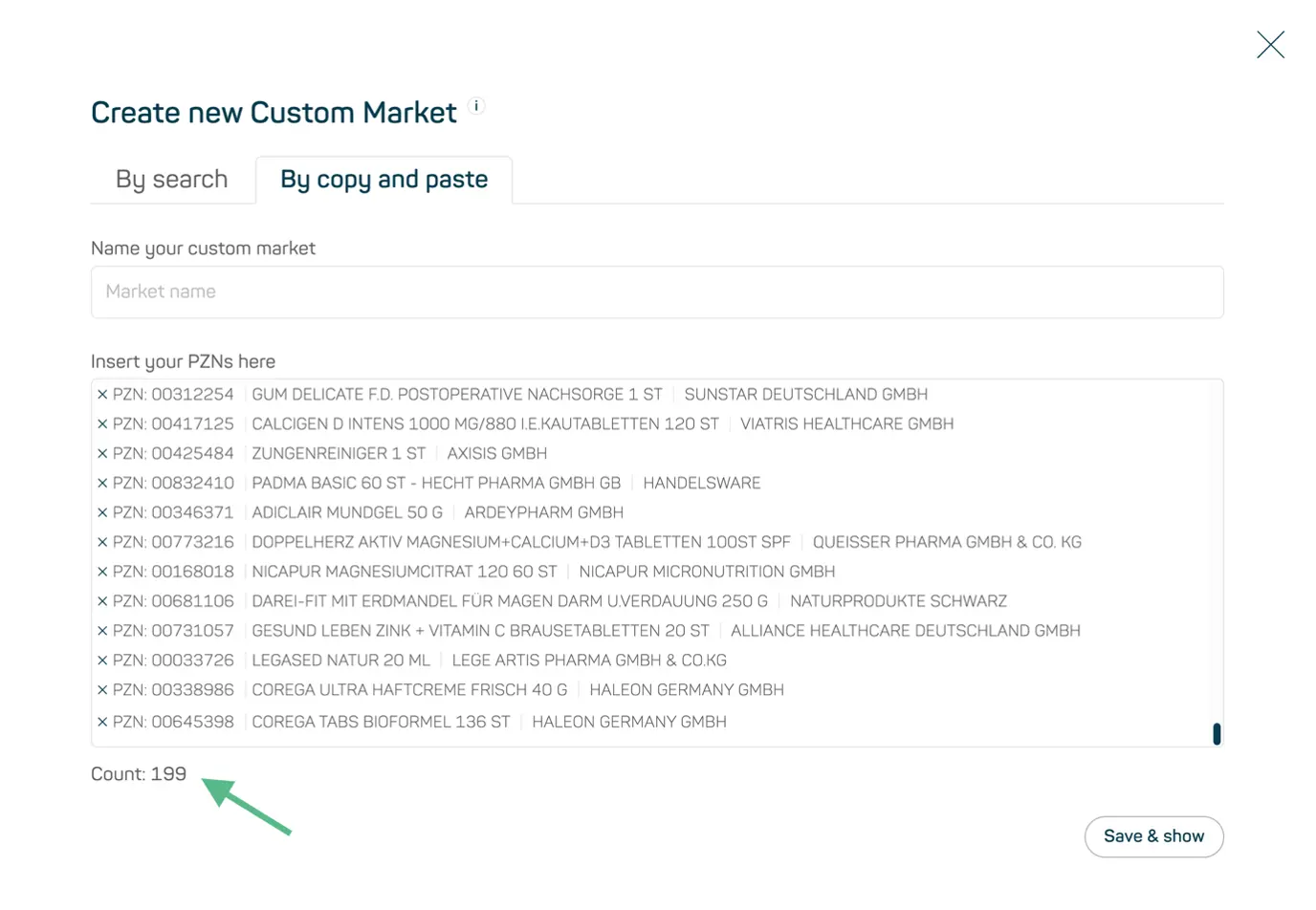
Image 1
What is the difference between the “By Search” and “By Copy and Paste” functions when creating a Custom Market?
- The “By Search” function allows you to create a dynamic market. You can manually add Products, Product Groups or Brands to your Custom Market using the search function. Once the Custom Market has been defined, all future products, product groups and brands are automatically added to the market as soon as they are available.
- In contrast, you can use the “By Copy and Paste” function to create a static market. Here you can copy and paste a list of PZNs to define your Custom Market. In comparison to the “By Search” function, this market is not automatically expanded; only the PZNs that were inserted at the time of creation are considered.
What else is new?
You will now be able to define a Custom Market quicker by clicking on the icon next to “Select a Market” (see image 2). By clicking on the “+” icon, the modal opens in which you can create a Custom Market. At the same time the button for creating a custom market within the dropdown moved to the top (see image 2).
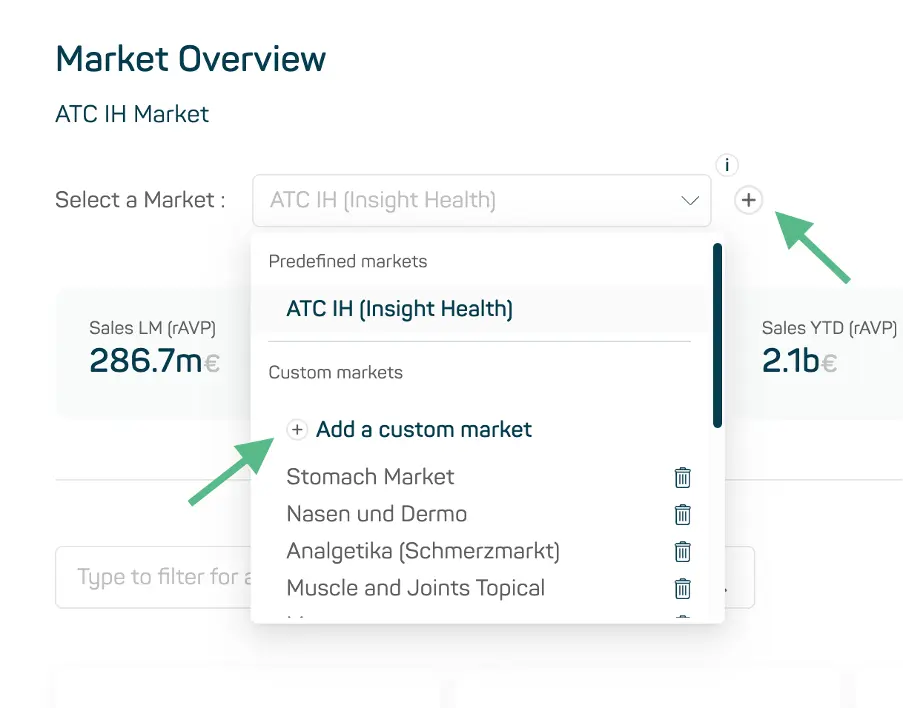
Image 2