New Deep Link to save your current session and improved usability for creating Custom Markets
02.07.2024
The latest update of the Insights Hub allows you to save the settings of the current session and return to it at any other time. In addition, the usability for creating Custom Markets has been improved.
The Deep Link
In the main header of the Insights Hub, you can now find a so-called Deep Link button. By clicking on the Deep Link button, a link (URL) is created and copied into your clipboard and at the same time in your browser’s URL bar. This link contains all your cross-module selected settings of your current session. You can bookmark the link in your browser and use it at a later point. Whenever you want to return to your saved session, you just click on your bookmark and continue your work where you left off.
How to use the Deep Link?
You can use the Insights Hub as usual. For example, you might want to create a Custom Market (e.g. „Muscle and Joints Topical“ including the brands like Traumeel, Voltaren, Kytta, Diclox, Thermacare, etc.) in the Market Overview, then activate the „Switch to rAVP“ toggle, hide the market navigation and finally display the sales value according to rAVP of the given Custom Market as a line chart within the Performance Tracker. To persist those session settings, just click on the Deep Link button. The link you just created now contains all that information.
To bookmark this link, simply click on the star symbol in your browser’s URL bar (e.g. in Google Chrome, image 1). Then name the bookmark, e.g. Custom Market – Muscle and Joints Topical (see image 2), place the bookmark into a specific folder or just add it to the bookmarks bar (see image 3 and 4).
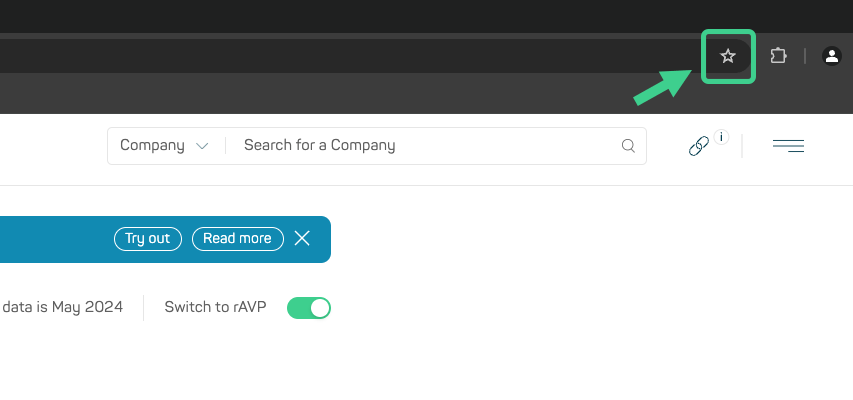
Image 1
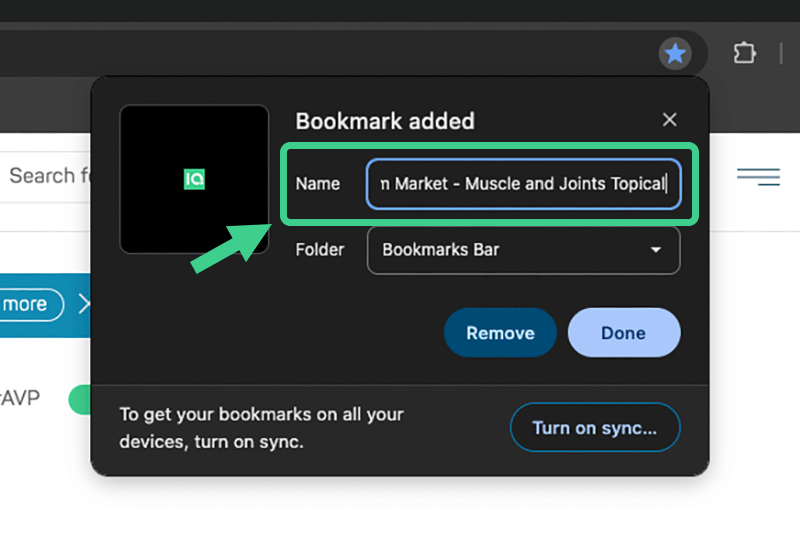
Image 2
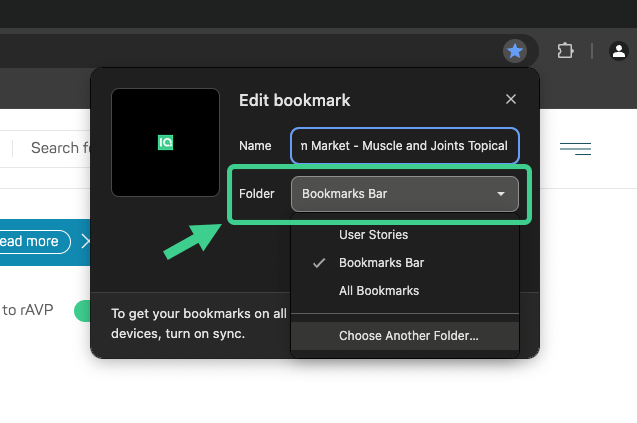
Image 3

Image 4
How do I restore the saved session?
If you want to re-enter an existing setup/configuration, simply navigate to the folder in your bookmarks where you saved the Deep Link (e.g. in the bookmarks bar) and click on the link (see image 5). Your saved settings will be restored automatically, and you can continue your work seamlessly. The link will also work if you were previously logged out of the Insights Hub.
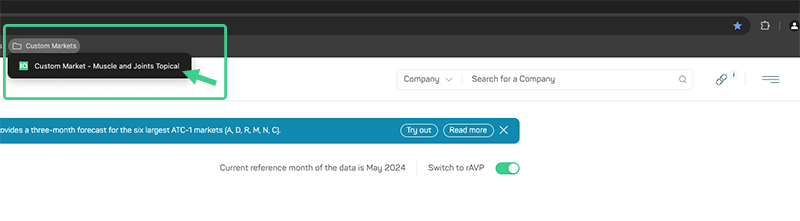
Image 5
Can I save multiple deep links for different sessions?
You can create several Deep Links for different configurations/settings and save them as bookmarks into your browser (see image 6). Name them according to your use case and save them into a folder in your bookmarks directory as a collection.
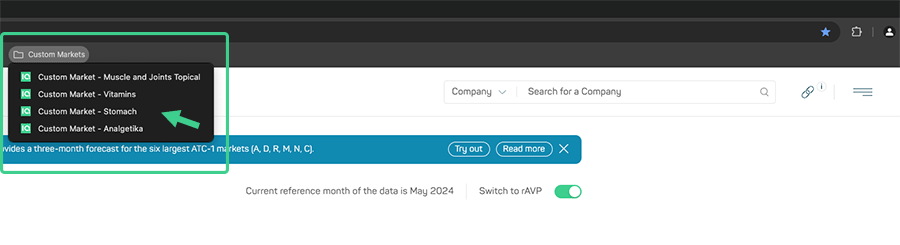
Image 6
What are the next iterations?
In the next iteration, we will integrate a Favorites Section in the Insights Hub that will further increase the usability of the Deep Links. With this function, the links can be managed directly within the Insights Hub. This allows you to navigate quickly into the different settings depending on your use cases.
In addition, we are also planning to introduce a sharing function that will make it possible to share your settings with colleagues within your company. This will allow individual views, configurations and contexts (like Custom Markets) to be easily shared via the Insights Hub with just a few simple clicks.
UX Improvement – Improved usability on list creation using search
In several places where you can create lists of brands, product groups etc. (Custom Markets, POS Insights, Custom Download) by using the search function, results to the search will stay without closing the search bar after a selection was made (see image 7). Previously, the search bar had to be reopened after each selection, making the process more time-consuming.
With this enhancement, the search bar now stays open allowing you to add multiple products, product groups or brands to your list at once. In addition, already selected search results are displayed in the search bar, giving you a clear overview of which search results have already been added to the list. The result is a more efficient way of creating custom lists and thus optimizing the workflow.
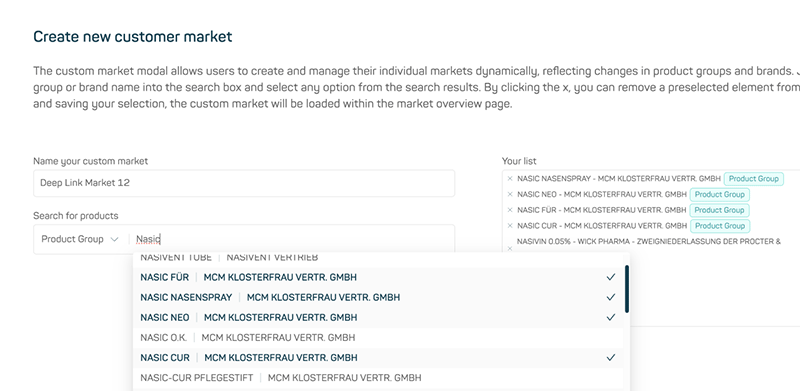
Image 7