Alerting, potentials, and faster time navigation
05.11.2025
With the latest product iteration, you can benefit from alerting in POS Live Availability, potential analysis in POS Search Visibility, and a new date picker in Market Overview. These updates help you stay informed, identify new opportunities, and navigate data more efficiently.

Stay informed with a proactive availability alert
Never miss critical changes in product availability again: POS Live Availability now includes an alerting function that keeps you automatically up to date.
Via the newly added bell icon, you can activate, manage, or deactivate alerts directly within POS Live Availability.
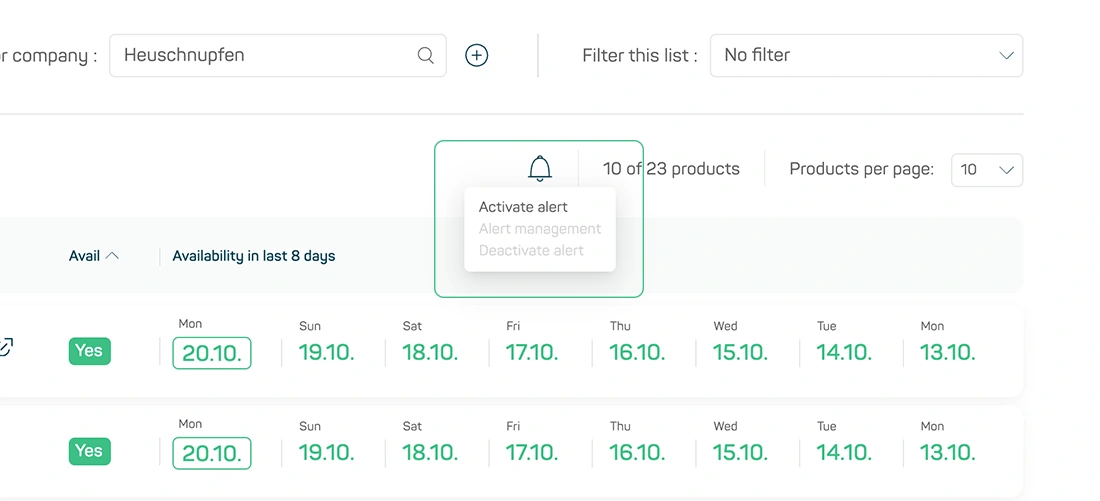
Image 1
How to activate an alert
Click the bell icon and select “Activate alert” (image 1) to choose a Custom Market or Company (currently max. 1), select the shops you want to monitor and define the alert trigger (unavailable or currently no info) (image 2).
Once subscribed, you will receive a daily E-Mail approximately at 11:00 a.m. only when at least one of your monitored products changes its status from available to unavailable or no info since the previous day. Products that remain unavailable will not trigger additional alerts.
Each E-Mail includes a direct deep link to the Insights Hub, taking you straight to the affected view, pre-filtered by market, shops, and product status.
This allows you to react quickly, manage stock issues proactively, and stay informed without manual checks.

Image 2
Managing or deactivating an alert
If you already have an active alert, you can easily adjust your settings via “Alert management” or deactivate it via “Deactivate alert” (images 3 and 4) either from the bell menu or directly through the E-Mail notification.
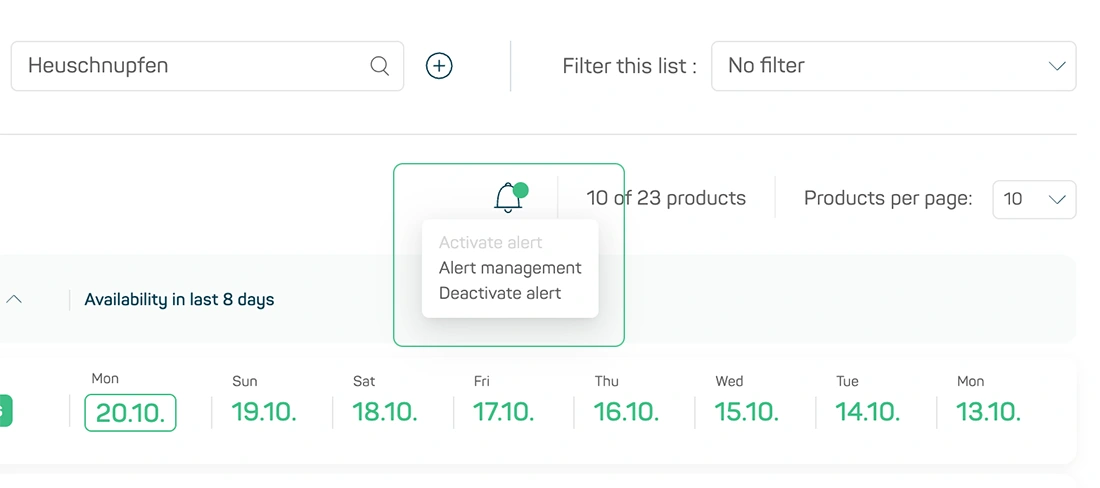
Image 3
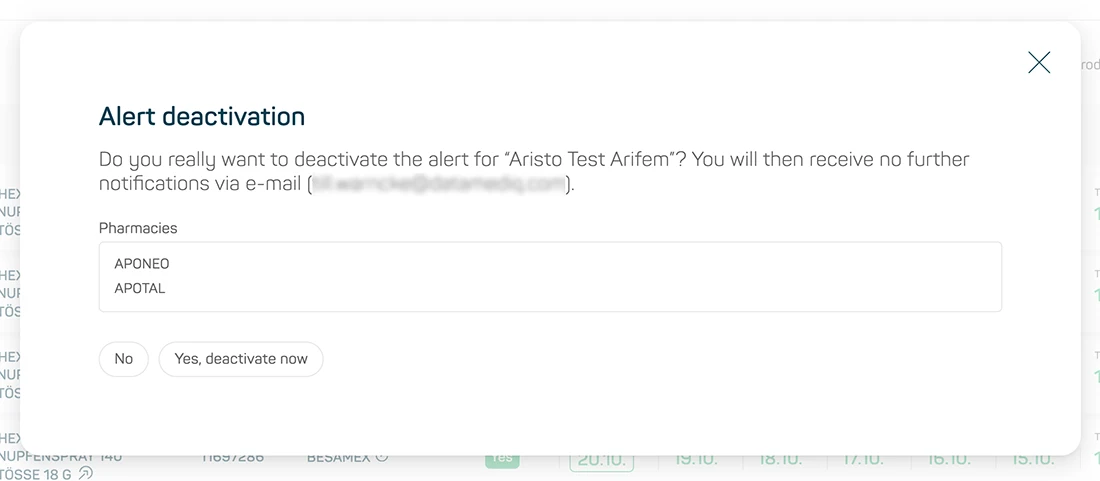
Image 4
Discover potentials in POS Search Visibility
A potential analysis is now also available in POS Search Visibility, following the same logic already implemented in POS Category Management.
When working with a Custom Market, you can now identify where your products appear and where they’re missing, directly within search results.
Three new filters make this possible:
- “All included” shows search terms containing both your and your competitors’ products
- “Just my products” highlights search terms that only contain your own products
- “My products missing” flags search terms where only competitor products appear
Each option is visually supported with color coding (grey, green, and red), helping you quickly spot visibility gaps and competitive overlaps in your search placements (image 5).
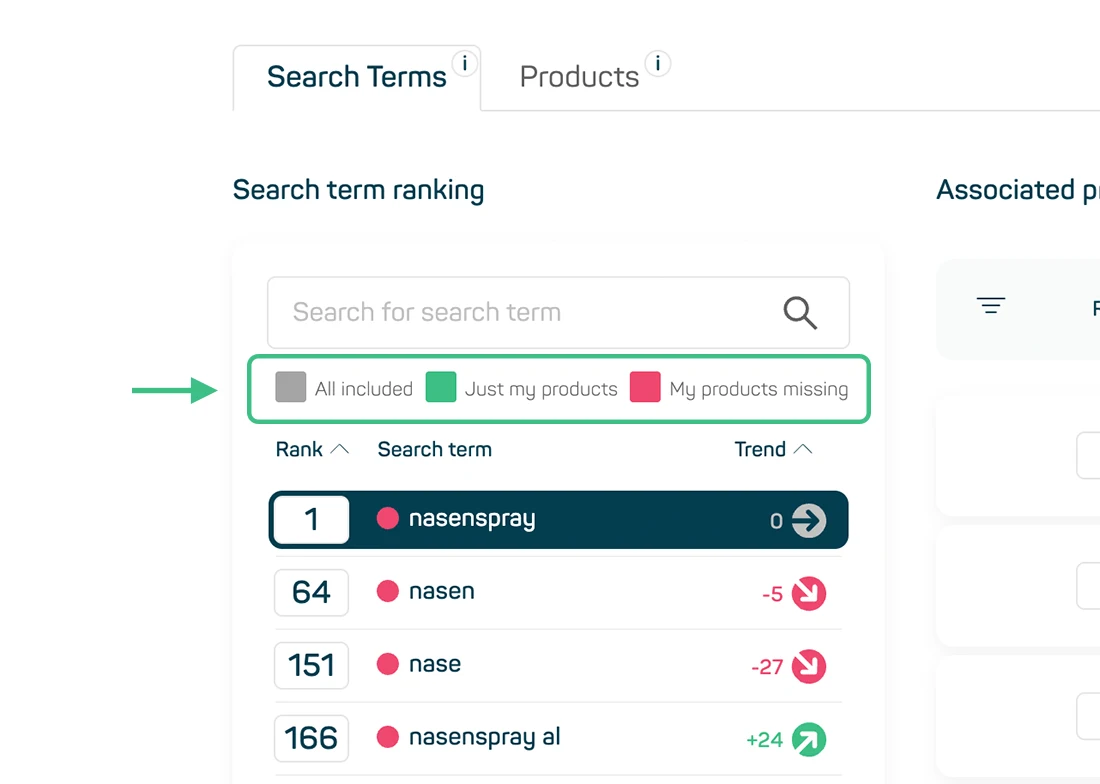
Image 5
Navigate historical data faster with the new date picker
The reference period for your data is now displayed directly in the main navigation header (image 6).
As mentioned in the previous Changelog, Time Travel is now available for Market Overview, and with this update you can now easily select a specific month using a new date picker.
Instead of clicking through each month one by one, you can now jump directly to the period you need, up to 12 months back from the current month.
After selecting a month, the page automatically reloads, showing all data updated to your chosen period.
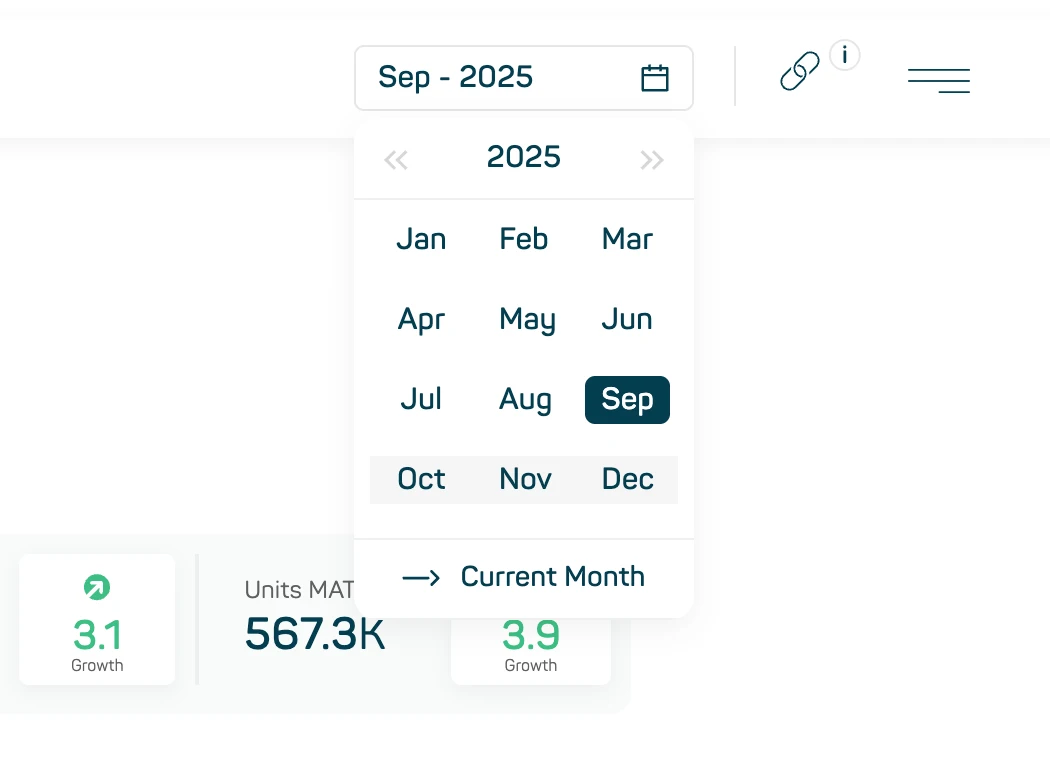
Image 6