Executive Summary in POS Content & Quality Control
14.09.2026
Shortly after Live Availability, Content & Quality Control gets an Executive Summary too. It sits right at the top of the submodule and shows at a glance how your product presentation is doing, across all shops, for the most recent completed day.
Content problems are rarely across the board. Usually it’s a single shop where the packshot is missing or the description hasn’t been maintained. In the table you only find that if you go looking for it. The Executive Summary turns that around.
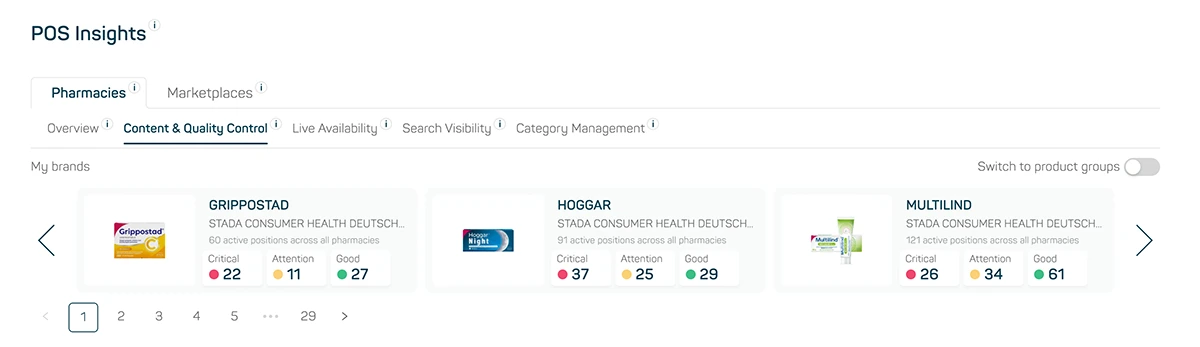
Image 1
Starting point: your top brands across all shops
The setup is the same as in Live Availability: your three highest-revenue (based on rAVP MAT) brands side by side, arrows to page through, a toggle for product groups.
Instead of an index, the cards here carry three tiles with the absolute number of active listings, split by today’s overall status: critical, attention or good. A listing is, as before, one PZN in one shop. Only active listings count, so a brand with 24 PZNs in 13 shops doesn’t automatically reach 312 listings. Not every PZN is listed in every shop, which is why a portfolio like that might come to just over 200 active listings, whose overall status is distributed across the three tiles.
That overall status is the traffic light you already know from PZN level in the table. It isn’t a new metric of its own, but combines the three sub-indicators packshots, headline and description into a single value.
How the overall status is derived
Each sub-indicator is rated individually first. The benchmark is the average of that indicator across all shops. The further a shop deviates from it, the more critical the rating. The same scale applies to all three sub-indicators:
| Deviation from average | Status |
| below 25 % | good |
| 25 % to below 50 % | attention |
| 50 % and above | critical |
The overall status of the listing then follows from these three individual ratings, and it takes the strictest case. If one sub-indicator is red, the whole listing is red. That way a missing packshot doesn’t disappear behind a clean headline, and it’s exactly this strictest case that the tiles in the Executive Summary count.
One level deeper: the shop drilldown
Clicking the tiles opens the shop level. All shops at a glance, the one with the most critical listings at the top. For each shop you see how its listings are split across critical, attention and good.
Clicking a shop row filters the PZN table below it automatically to that shop plus the selected brand or product group. That puts you straight onto the PZNs where something is actually missing, and shows you which of the three sub-indicators tipped the scale.
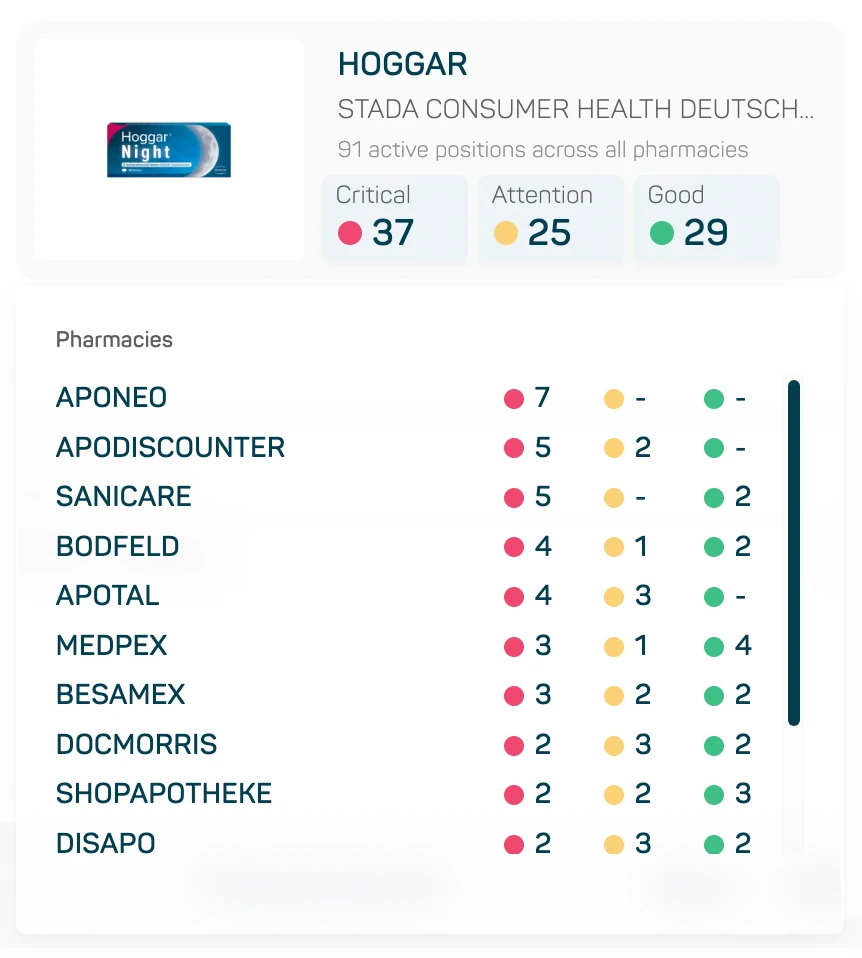
Image 2
Good to know
- The same applies here: for now, the Executive Summary always reflects your own company’s data, whatever you select further down in the submodule. Going forward, we want the company selection to apply here as well.
- No setup required. The summary is there as soon as you open Content & Quality Control.