Executive Summary in POS Live Availability
14.09.2026
With the latest iteration, Live Availability now has an Executive Summary too, joining Search Visibility and POS Overview. It sits right at the top of the submodule and answers the question you have in mind when you open it anyway: am I available with all my products across all shops – and if not, where exactly not?
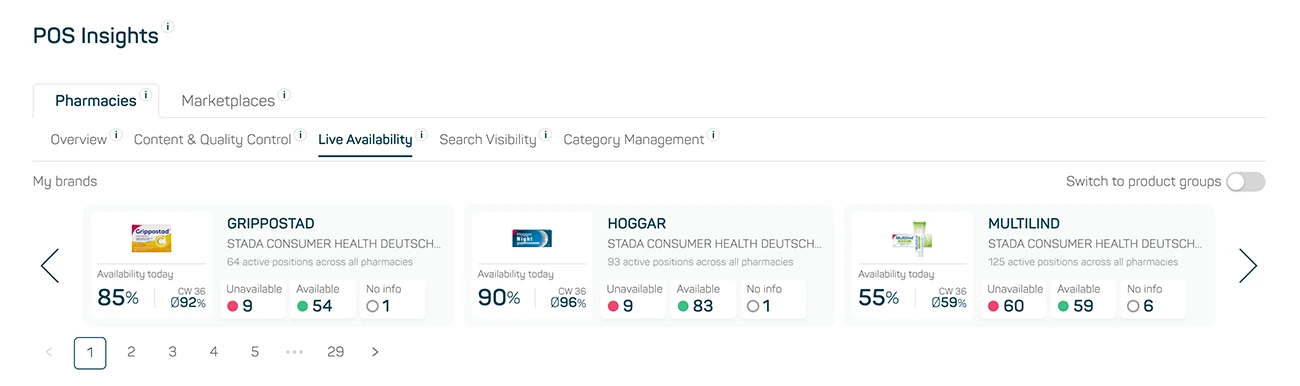
Image 1
Starting point: your top brands across all shops
When you open Live Availability, you see your three highest-revenue (based on rAVP MAT) brands side by side, each on its own card. If your portfolio holds more, you page through them with the arrows. A toggle switches the view from brands to product groups.
Each card shows the Availability Index in % for the most recent completed day, next to the average of the last completed calendar week for comparison. Alongside that, three tiles with the absolute number of active listings, split by today’s status: unavailable, available or no info.
Every PZN in every shop is counted individually. We call that combination a listing. Only active listings count, so a brand with 24 PZNs in 13 shops doesn’t automatically reach 312. Not every PZN is listed in every shop, which is why a portfolio like that might come to just over 200 active listings. These are the numbers you find in the tiles, split across the three statuses. So you see straight away how many positions are actually affected across all shops.
One level deeper: the shop drilldown
Clicking the tiles opens the shop level. All shops at a glance, sorted by need for action – the shop with the most unavailable listings at the top. For each shop you see its Availability Index for the day and how its listings are split.
Below that sits the familiar table at PZN level. Clicking a shop row filters it automatically to exactly that shop plus the selected brand or product group with all the PZNs it contains. Two clicks take you from the portfolio view down to individual PZNs, without setting a single filter yourself.
If you want to see the development over time, the button at the end of the table takes you straight into the POS Performance Tracker, pre-filtered to Availability and the brand or product group you came from.
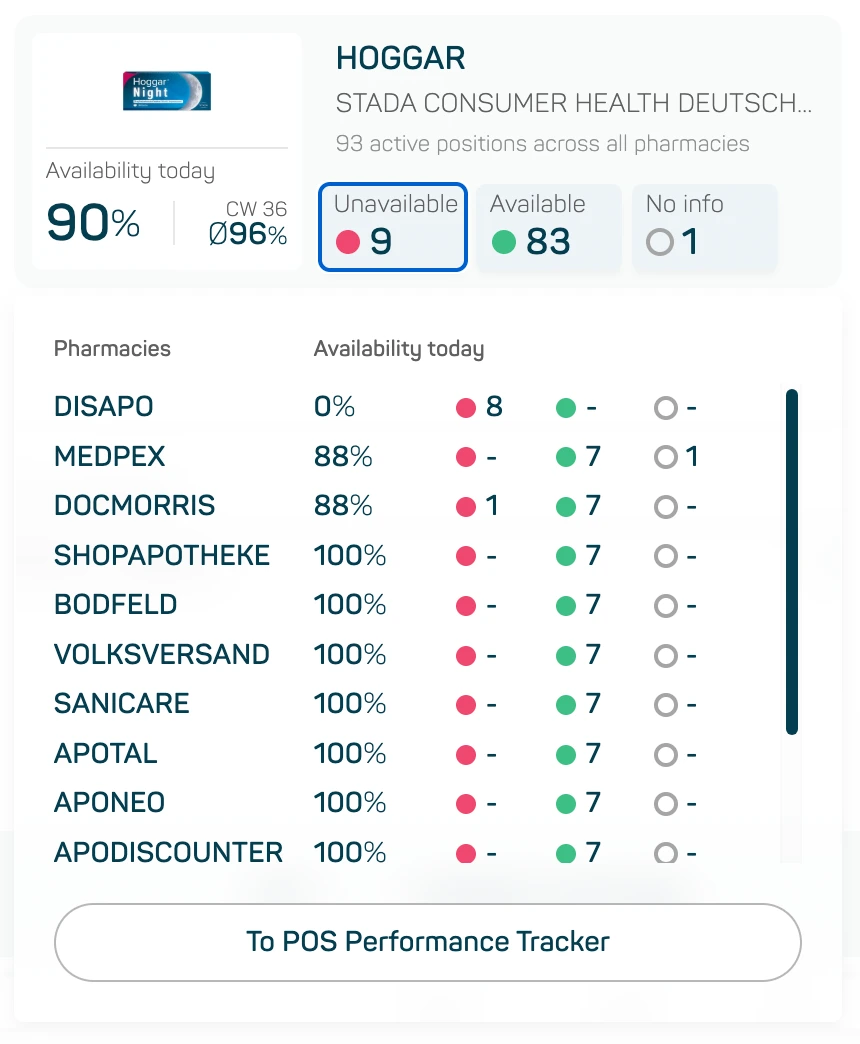
Image 2
Good to know
- For now, the Executive Summary always reflects your own company’s data – whichever companies you select further down in the submodule has no effect on it. Going forward, we want the company selection to apply here as well, so you can look across companies freely.
- No setup required. The summary is there as soon as you open Live Availability.